
If you’re an AWM user who also enjoys customising the look and feel of the applications you use, then this article is for you.
Thinkproject has recently added themes as a new way to personalise your AWM experience. And in this article we will cover how to choose a theme, what they look like, and some ideas for future updates to the theme functionality.
But before we explore the new AWM themes in more detail, let’s go on a very quick and interesting tangent about application settings.
Are you a changer of settings?
Have you ever wondered how many people actually go in and change the default settings in an application?
Well it turns out that if you are a changer of settings (I believe this is the official term for this subset of the population), you might be in a very small group of an application’s user base.
In this fascinating article by Jared Spool, a survey was done back in the "early days of PC computing", which analysed the Microsoft Word settings files that were submitted by users. What the survey found was that "less than 5% of the users” that were surveyed “had changed any settings at all".
That is a rather small portion of a user base… but you can normally count me in that group for most applications I use! What about you?
Now tangent aside, let’s jump into the AWM themes.
Retirement of the classic theme.
A couple of notifications have recently been posted in AWM about the retirement of the classic theme. In case you missed them, one of the notifications read as follows;
We’re saying goodbye to the Classic theme.
The Classic theme is being retired to improve visual clarity and align with our brand. From November, choose either the Light or Dark theme. Everything still works the same—just with a cleaner, more modern feel.
With the classic theme now retired, you have two new themes available to choose from: the aptly named Light and Dark themes.
How do I choose a theme?
So how do you actually choose a theme? The good news is that it’s really simple to change your theme in AWM by following these steps.
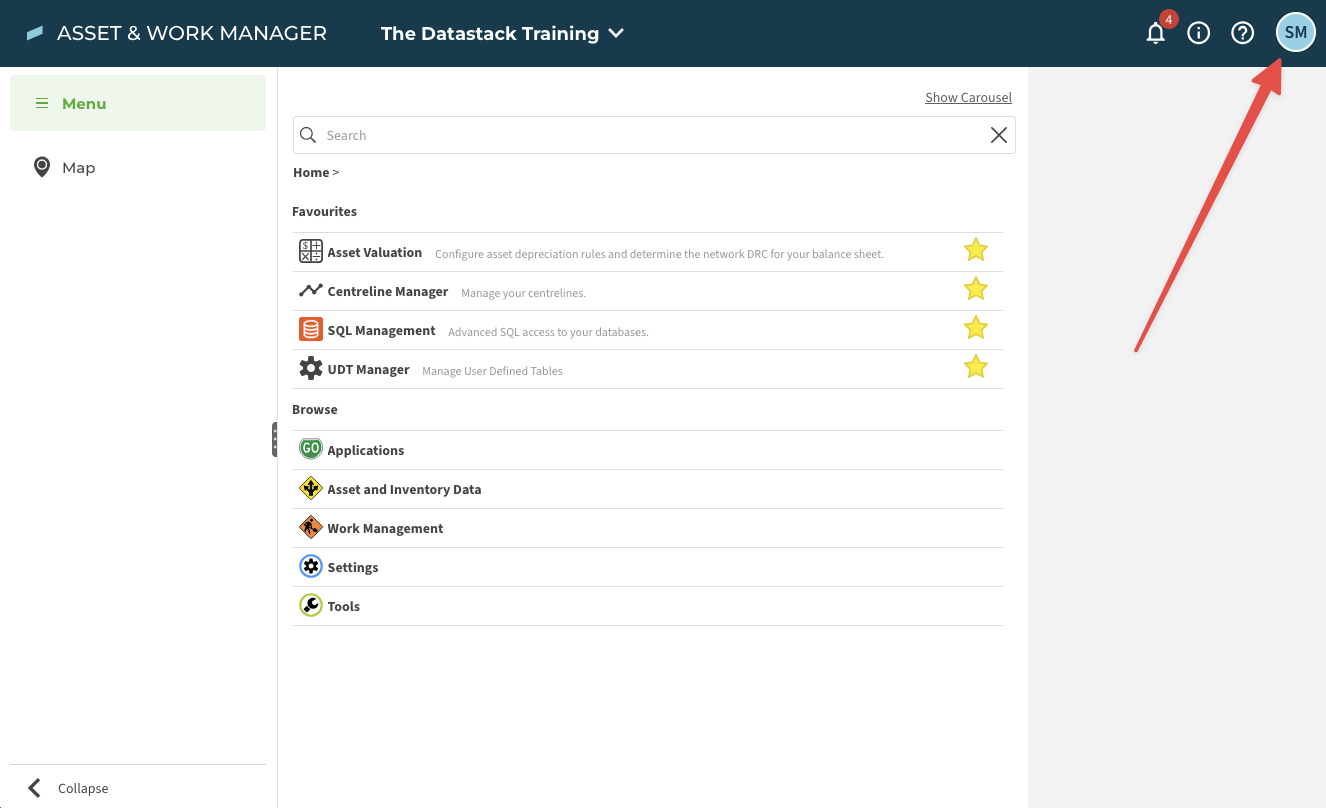
#1. In the top right of the AWM window, click on the round button with your user account initials.
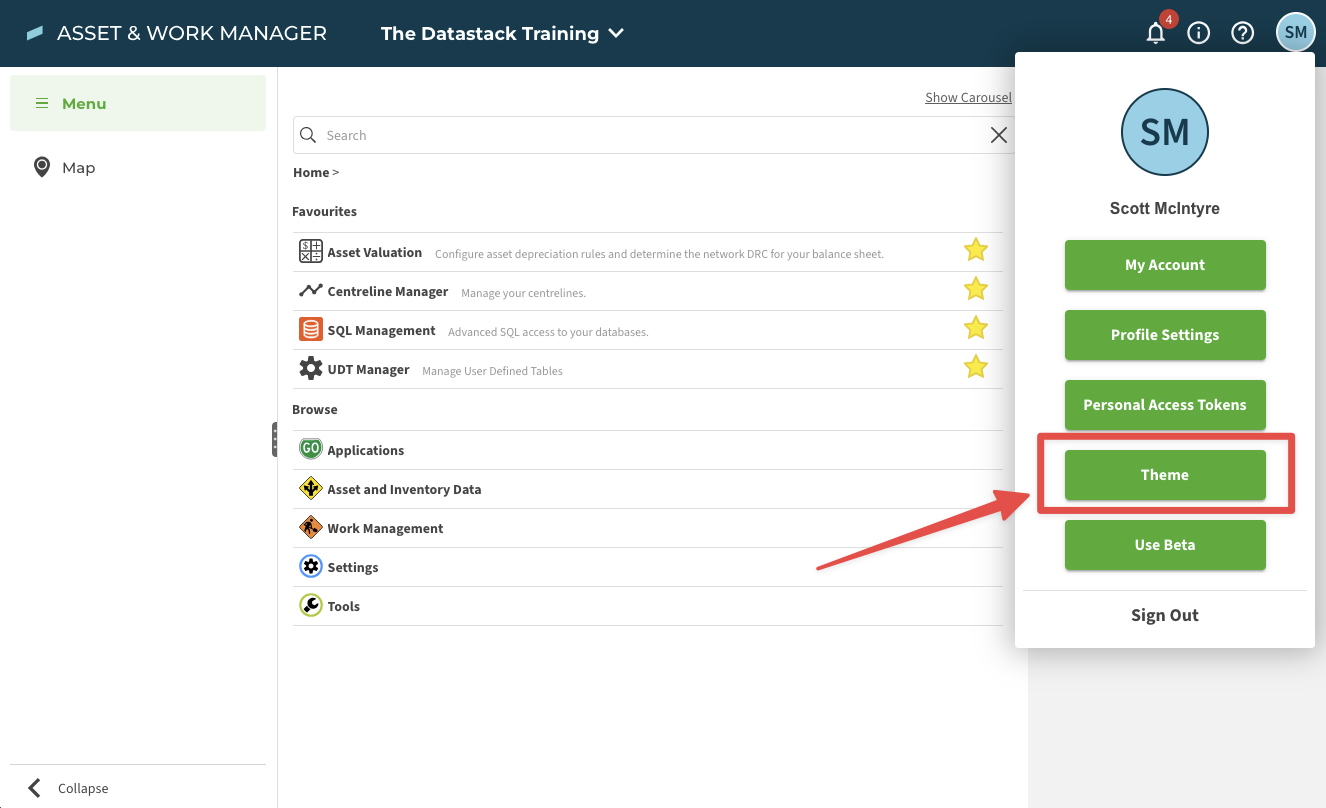
#2. Click on the Theme button in the menu window that appears.
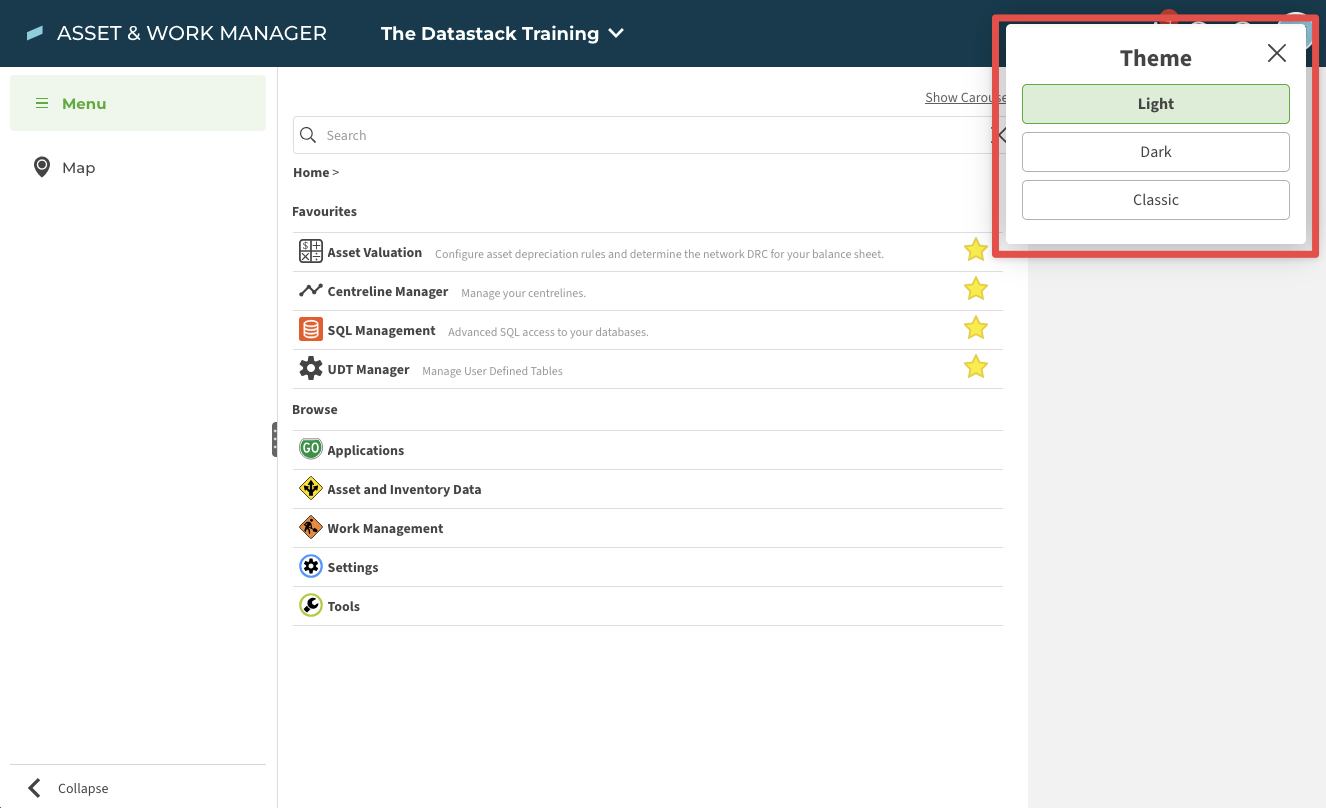
#3. Select the theme you want to apply from the list of themes available (note: the screenshot below still shows the now retired Classic theme).
And that is all there is to it. Your chosen theme will be applied within AWM straight away.
What do the different themes look like in action?
Let’s take a look at the themes in action, in both a menu and an asset grid context, to see how they change the look and feel of AWM.
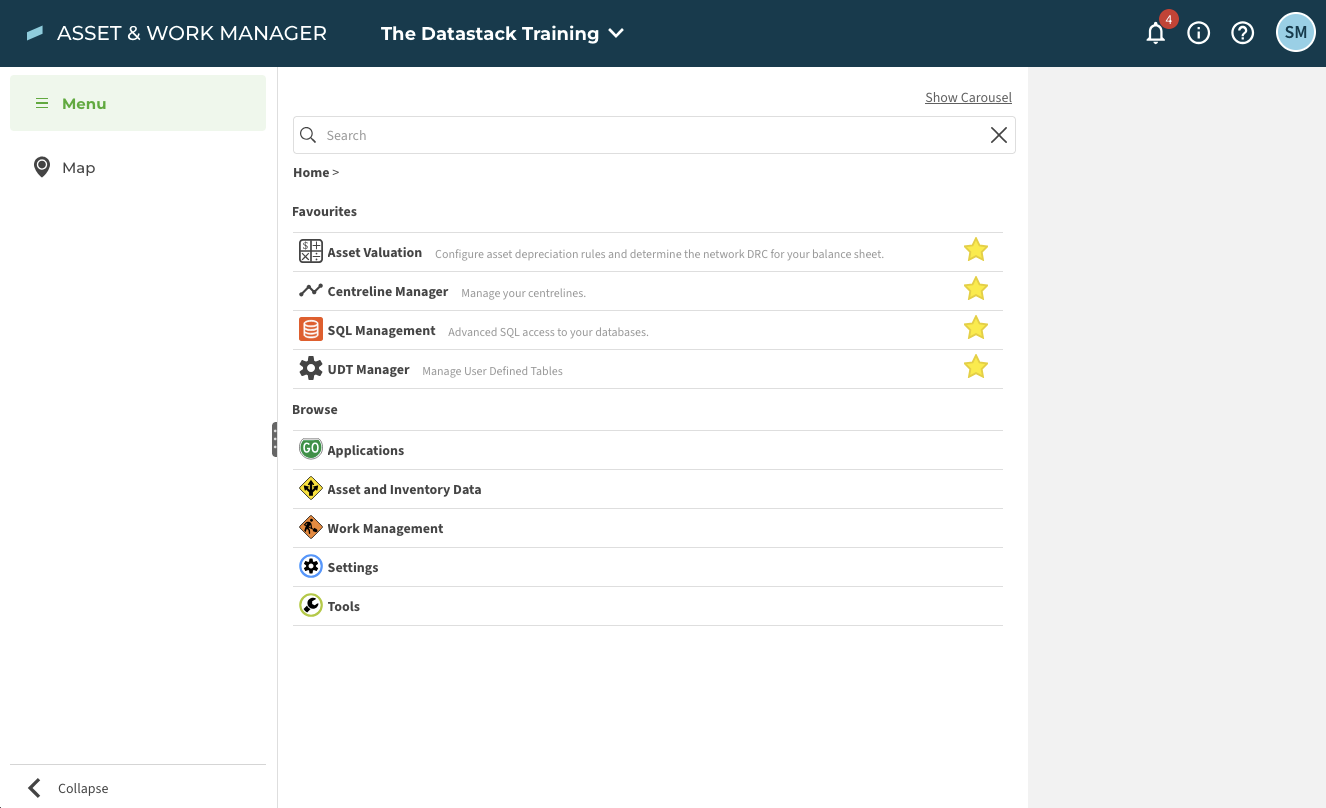
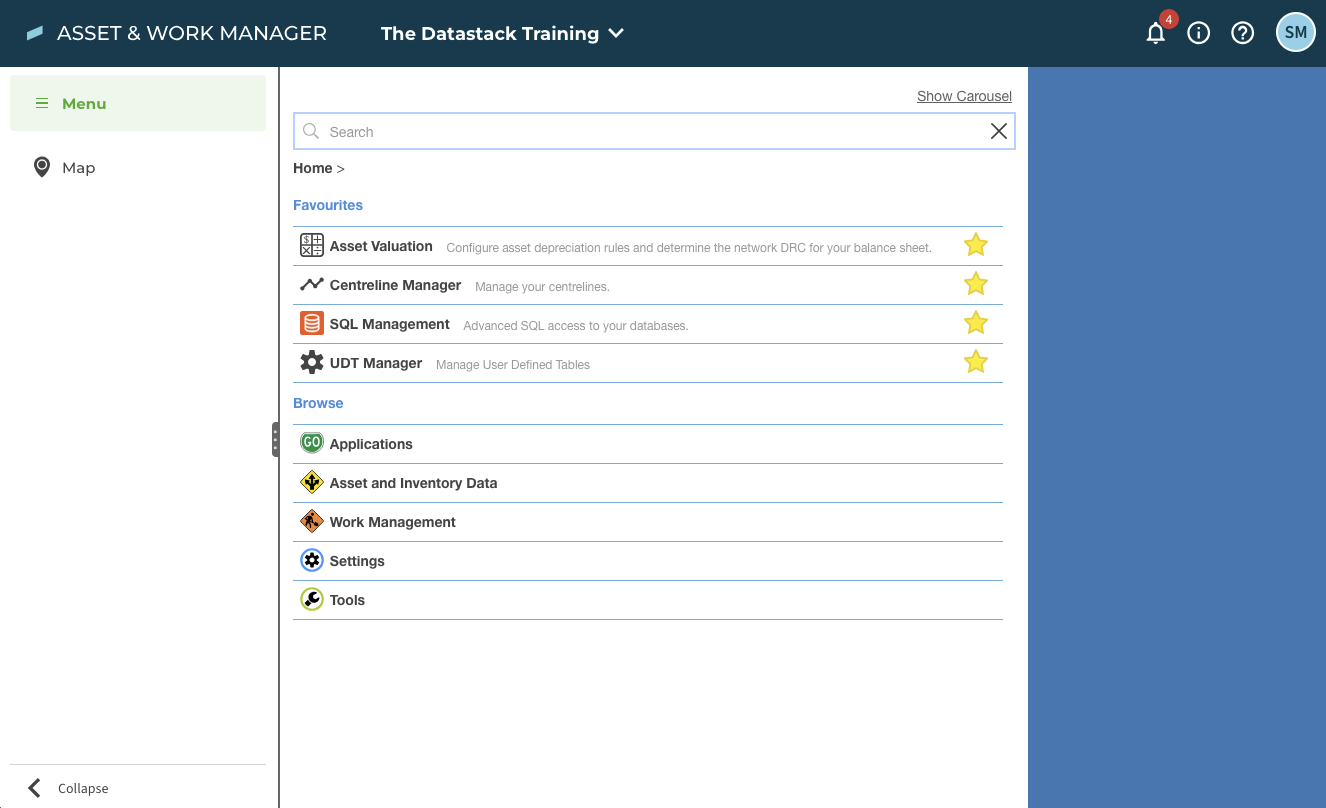
Here is the menu screen with the Light theme applied…
Here is the menu screen with the Dark theme applied...
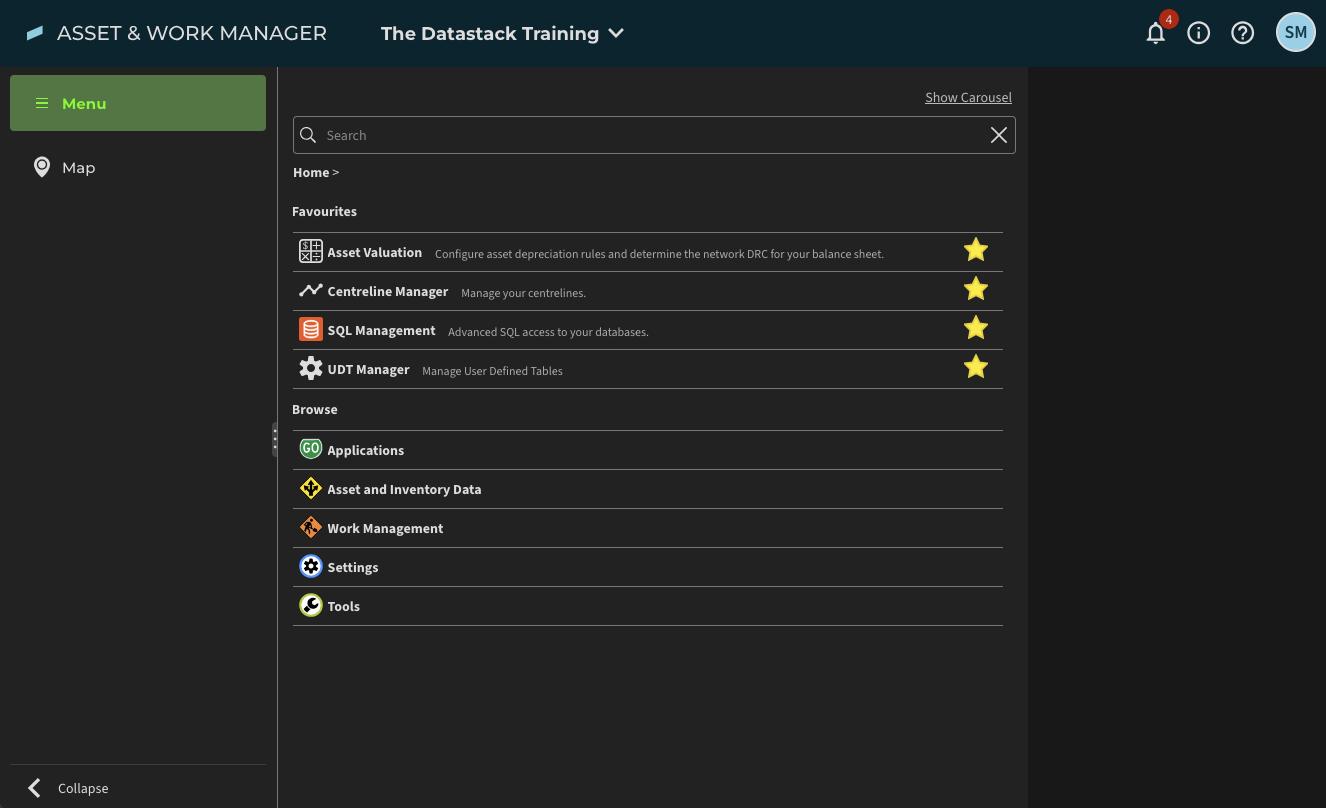
And for comparison, here is how the menu screen used to look with the Classic theme applied …
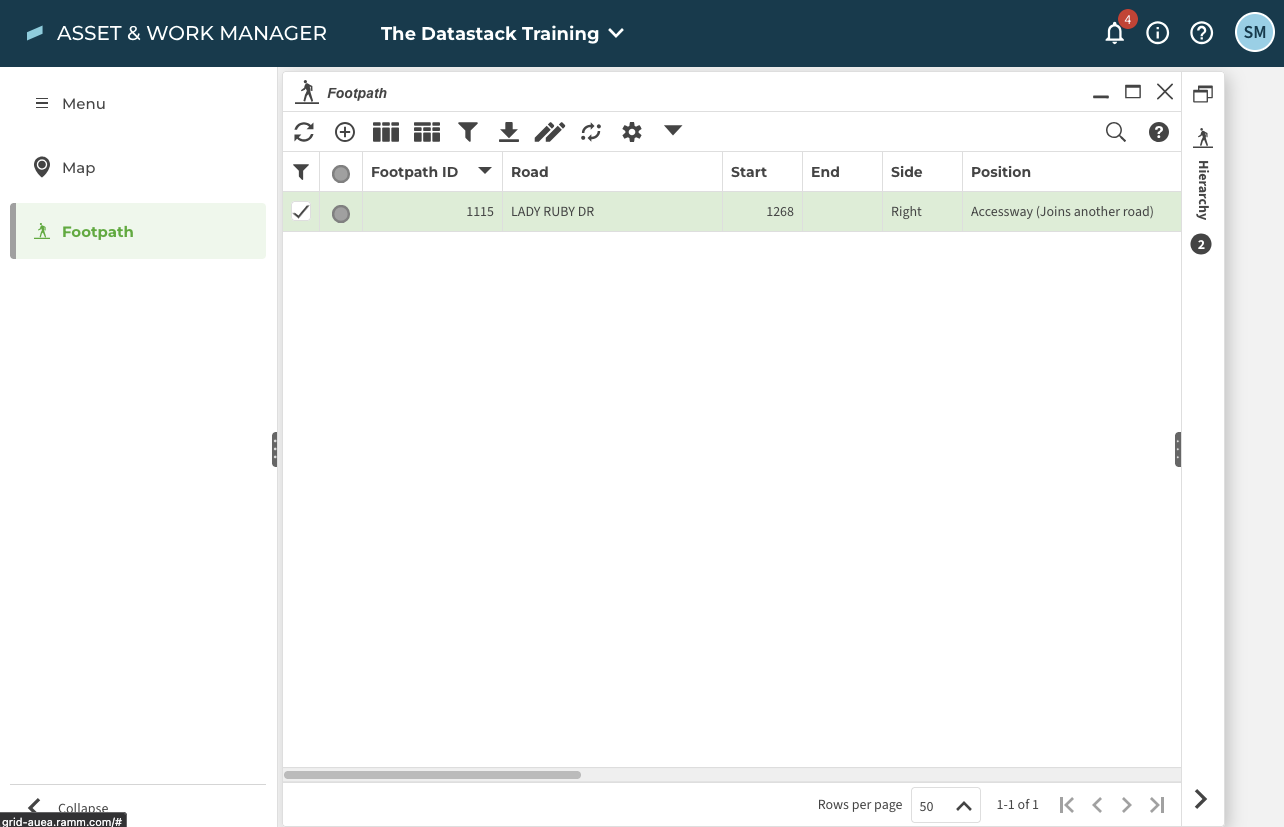
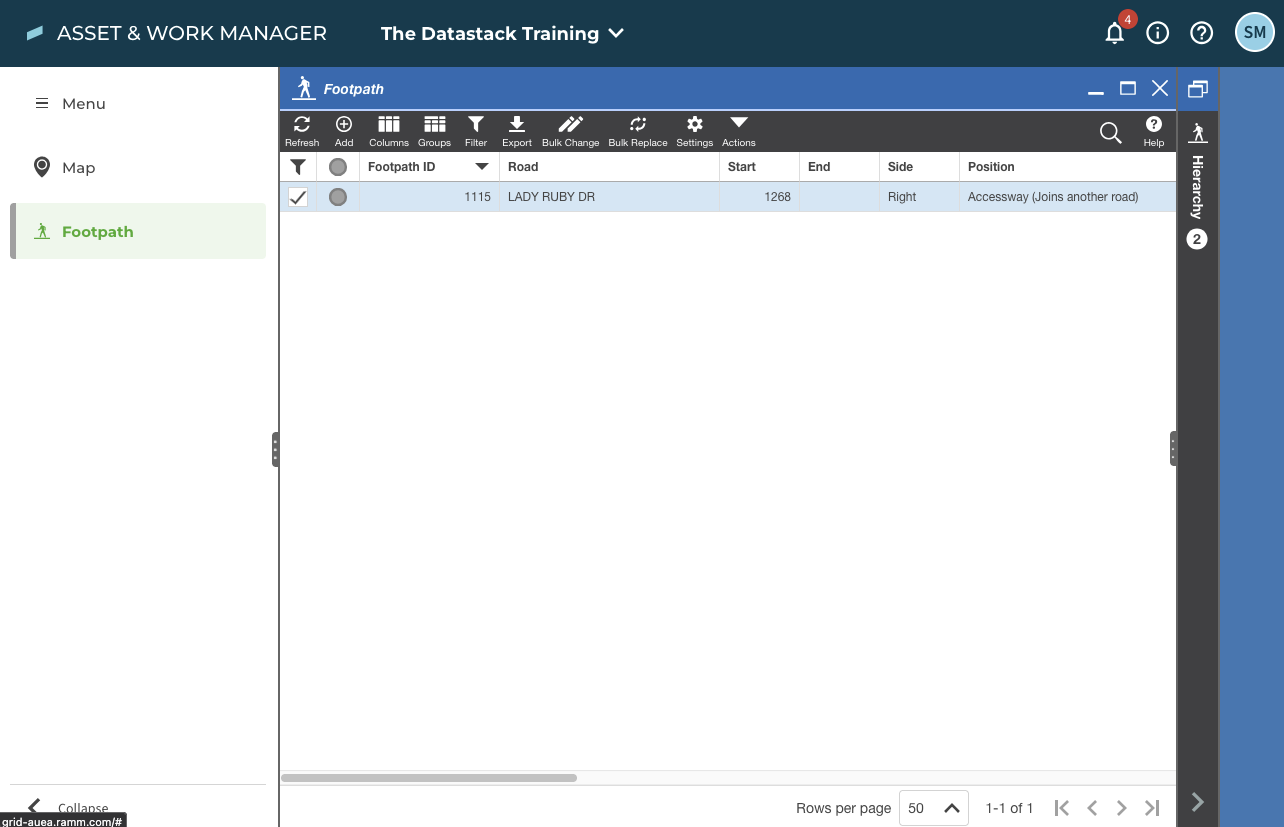
Now switching over to a grid view, here is an asset grid with the Light theme applied…
Here is an asset grid with the Dark theme applied…
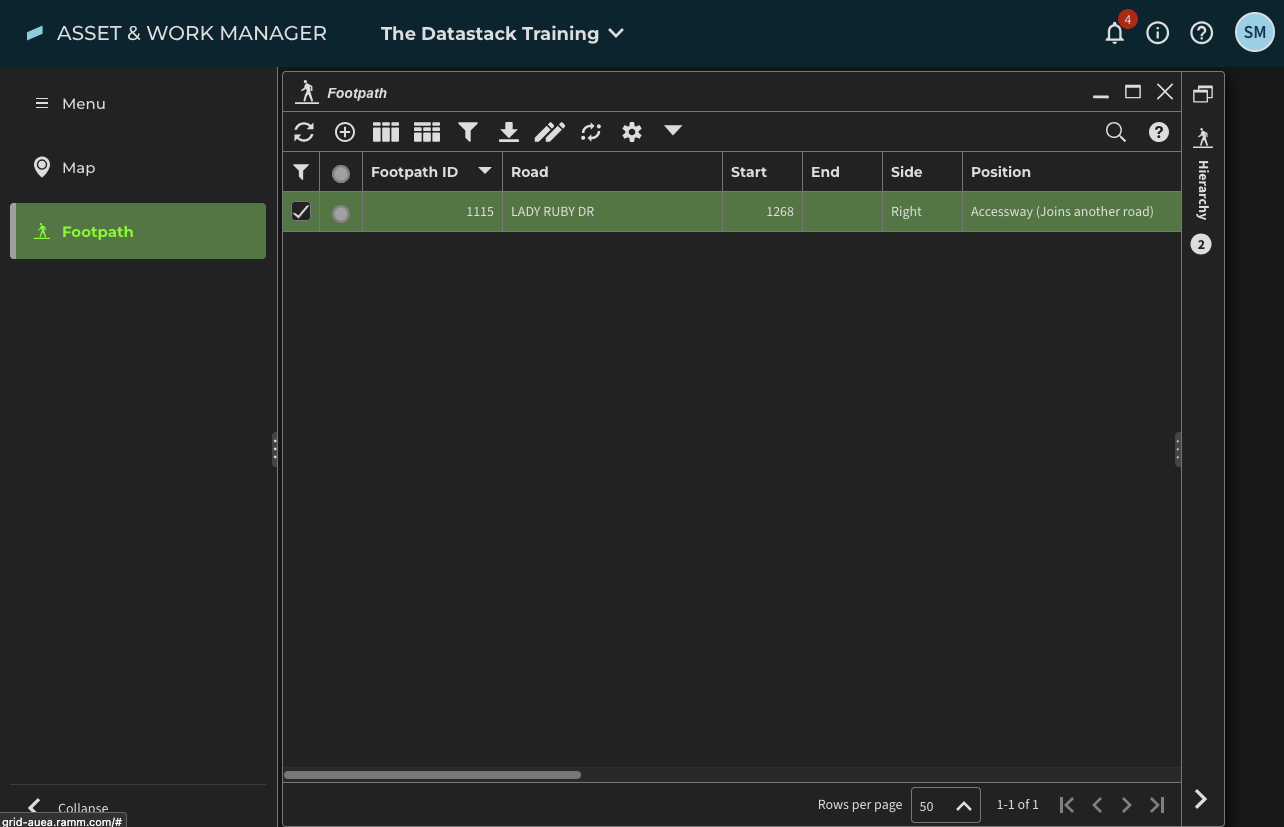
And again for comparison, here is how the asset grid screen used to look with the Classic theme applied …
Ideas for the continued development of themes
If Thinkproject continues to develop the theme functionality in AWM, here are some ideas that would be cool to see implemented:
Dynamic theme selection based on your current operating system settings. Your operating system probably has appearance or theme settings available to configure. In MacOS for instance, these settings are under System Settings > Appearance > Light / Dark / Auto. It would be awesome if AWM could dynamically switch the application theme to match what you are running on your operating system at the time.
Setting a different theme for each database you have access to. Rather than choosing a theme at your user account level, the idea here is that you could set the theme at the database level instead. Here is one use case for this; imagine it is your UAT week during an AMDS implementation. Your production database could be running the light theme, and your AMDS testing database could be running the dark theme. This could help provide an immediately recognisable visual cue to differentiate between databases when you are using multiple windows.
What if totally custom themes (think element picker and colour palette) were possible. The use case for this idea is far more tenuous from a business needs perspective; it’s more catering to maybe the 1% of those less than 5% of users that love tinkering with application settings. But if you wanted to run with a hot pink menu bar, or a Christmas theme, or a retro inspired asset grid, then this would let you make it happen.
So that’s a wrap on today’s article. Thanks for reading.
And now you are left with a big decision to make…which theme are you going to apply when you next login to AWM?
